

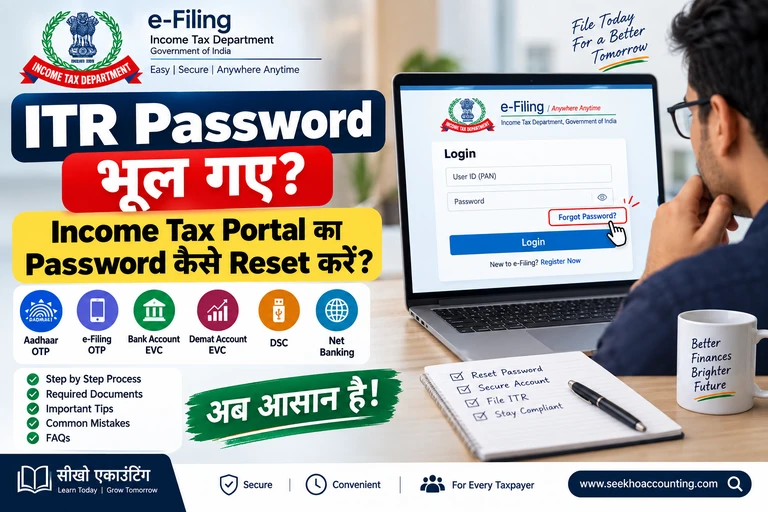

ITR Password Reset
दोस्तों एक बार फिर आपका स्वागत है सीखो एकाउंटिंग में।
अगर आपने Income Tax Portal पर पहले से अपना account बना रखा है और अब आपको उसका password याद नहीं आ रहा है, तो परेशान होने की जरूरत नहीं है।
कई बार ऐसा होता है कि ITR Filing के समय जब Income Tax Portal पर Login करने की जरूरत पड़ती है, तब password याद नहीं रहता। इसके बाद लोग बार-बार पुराने passwords try करते हैं और account access करने में परेशानी होने लगती है।
लेकिन अच्छी बात यह है कि Income Tax e-Filing Portal पर Forgot Password की सुविधा उपलब्ध है, जिसकी मदद से आप अपना नया password बना सकते हैं।
आज के इस article में हम आपको आसान भाषा में समझेंगे कि Income Tax Portal का password भूल जाने पर उसे कैसे reset करें, कौन-कौन से options available हैं और password reset करते समय किन बातों का ध्यान रखना चाहिए।
Income Tax Portal का Password भूल जाएं तो क्या करें?
अगर आपको अपना e-Filing password याद नहीं है, तो नया account बनाने की जरूरत नहीं है।
आप existing account के लिए Forgot Password option का इस्तेमाल कर सकते हैं।
Individual taxpayer के लिए सामान्यतः PAN User ID के रूप में इस्तेमाल किया जा सकता है। अगर PAN और Aadhaar e-Filing portal पर linked हैं, तो Aadhaar को भी User ID के रूप में इस्तेमाल किया जा सकता है।
इसके बाद available verification method के जरिए identity verify करके नया password बनाया जा सकता है।
ITR Password Reset करने के लिए क्या-क्या चाहिए?
यह इस बात पर depend करता है कि आपके account में कौन-सा verification option available है।
Income Tax Department की current guidance के अनुसार password reset के लिए अलग-अलग methods उपलब्ध हो सकते हैं:
- Aadhaar OTP
- e-Filing OTP
- Bank Account EVC
- Demat Account EVC
- Digital Signature Certificate यानी DSC
- कुछ cases में Net Banking
सभी users को हर option जरूरी नहीं कि दिखाई दे। Available methods account में enabled security options और applicable conditions पर depend कर सकते हैं।
Method 1: Aadhaar OTP से Password Reset करें
अगर आपका PAN Aadhaar से linked है और Aadhaar में registered mobile number आपके पास active है, तो Aadhaar OTP के जरिए password reset किया जा सकता है।
Step 1: Income Tax e-Filing Portal खोलें
सबसे पहले Income Tax e-Filing Portal पर जाएं और Login option पर click करें।
Step 2: User ID डालें
अपना PAN या applicable User ID enter करें और Continue पर click करें।
Step 3: Forgot Password चुनें
Login screen पर password option के साथ दिखाई देने वाले Forgot Password option पर click करें।
Step 4: Reset Method चुनें
अब password reset करने के available options में से:
OTP on mobile number registered with Aadhaar
को select करें।
Step 5: Aadhaar OTP Generate करें
Declaration को select करके Aadhaar OTP generate करें।
आपके Aadhaar में registered mobile number पर OTP आएगा।
Step 6: OTP Verify करें
प्राप्त 6-digit OTP enter करके verification complete करें।
Income Tax Department के अनुसार Aadhaar OTP की validity 15 minutes होती है और सही OTP डालने के लिए limited attempts दिए जाते हैं।
Step 7: New Password बनाएं
अब नया password enter करें और उसे confirm करके submit करें।
Method 2: Registered Mobile और Email से ITR Password Reset करें
अगर आपके पास e-Filing portal पर registered mobile number और primary email ID का access है, तो e-Filing OTP method का इस्तेमाल किया जा सकता है।
इसमें आपको registered mobile number और email ID पर OTP प्राप्त हो सकता है।
दोनों OTP verify करने के बाद नया password set किया जा सकता है।
यह method उन taxpayers के लिए useful है जिनका registered mobile और email दोनों accessible हैं।
Method 3: Bank Account EVC से ITR Password Reset
अगर आपका bank account e-Filing portal पर properly validated है, तो eligible cases में Bank Account EVC के जरिए भी password reset किया जा सकता है।
इसके लिए bank account से registered mobile number और email ID का access होना जरूरी है।
Password reset process में Bank EVC generate करके उसे verify किया जाता है और इसके बाद नया password बनाया जा सकता है।
Method 4: Demat Account EVC से ITR Password Reset
कुछ taxpayers के लिए validated Demat Account के माध्यम से EVC option भी available हो सकता है।
इस method के लिए Demat account से registered contact details का access होना जरूरी है।
अगर यह option आपके account में available है तो आप EVC generate करके verification complete कर सकते हैं और उसके बाद नया password set कर सकते हैं।
Method 5: DSC से ITR Password Reset करें
अगर taxpayer के पास valid और active Digital Signature Certificate यानी DSC है और applicable conditions पूरी होती हैं, तो DSC के जरिए भी password reset किया जा सकता है।
लेकिन एक important point है।
अगर आप DSC के जरिए password reset करना चाहते हैं, तो DSC से संबंधित requirements पूरी होनी चाहिए। Income Tax Department की FAQ के अनुसार DSC से password reset के लिए applicable active DSC की जरूरत होती है और registered DSC वाले cases में संबंधित option available होता है।
इसलिए अगर DSC option दिखाई नहीं दे रहा है तो इसका मतलब यह नहीं कि portal खराब है। हो सकता है आपके account में यह method applicable या enabled न हो।
Method 6: Net Banking से Login और ITR Password Change
कुछ taxpayers के लिए Net Banking के माध्यम से e-Filing account access करने का option भी available हो सकता है।
इसके लिए PAN का bank account से linkage और applicable Net Banking/security settings की आवश्यकता हो सकती है।
Net Banking के जरिए successful login होने के बाद profile से password change किया जा सकता है।
New Password बनाते समय किन बातों का ध्यान रखें?
यह सबसे important part है।
Income Tax Department की current password policy के अनुसार नया password:
- कम से कम 8 characters का होना चाहिए।
- अधिकतम 14 characters का होना चाहिए।
- इसमें uppercase और lowercase letters होने चाहिए।
- इसमें कम से कम एक number होना चाहिए।
- इसमें special character भी होना चाहिए, जैसे @, #, $, % आदि।
उदाहरण के तौर पर कोई strong password इस तरह का हो सकता है:
Example@2026
लेकिन इस exact password को अपने account में use करने के बजाय अपना unique password बनाना बेहतर है।
ITR Password Reset होने के बाद कैसे पता चलेगा?
अगर password successfully reset हो जाता है तो portal पर success message दिखाई देता है और एक Transaction ID generate होती है।
Income Tax Department के अनुसार registered mobile number और email ID पर confirmation message भी प्राप्त हो सकता है।
इसलिए password reset के बाद Transaction ID को संभालकर रखना useful है।
अगर OTP नहीं आ रहा है तो क्या करें?
कई बार password reset करते समय OTP तुरंत receive नहीं होता।
ऐसी situation में सबसे पहले यह check करें:
- सही User ID/PAN enter किया है या नहीं।
- Registered mobile number active है या नहीं।
- Registered email सही है या नहीं।
- Aadhaar-linked mobile number accessible है या नहीं।
- OTP expiry तो नहीं हो गई।
- Spam/Junk folder में email तो नहीं गया।
- थोड़ी देर बाद नया OTP generate करके try करें।
पुराना OTP expire होने के बाद नया OTP generate करना पड़ सकता है।
अगर Forgot Password का Option काम नहीं कर रहा है तो?
अगर किसी particular method से password reset नहीं हो पा रहा है, तो available दूसरा verification method try किया जा सकता है।
उदाहरण के लिए अगर Aadhaar OTP से problem आ रही है लेकिन आपका validated bank account EVC method available है, तो उस option को use किया जा सकता है।
Income Tax Department की FAQ के अनुसार अगर किसी भी available method से password reset नहीं हो पा रहा है, तो taxpayer e-Filing helpdesk से assistance ले सकता है।
Password भूल गए हैं लेकिन User ID भी याद नहीं है?
इसमें भी ज्यादा परेशानी की जरूरत नहीं है।
Individual taxpayer के लिए PAN सामान्यतः User ID के रूप में इस्तेमाल होता है।
अगर PAN और Aadhaar e-Filing portal पर linked हैं, तो applicable cases में Aadhaar भी User ID के रूप में इस्तेमाल किया जा सकता है।
इसलिए User ID भूल जाने पर सबसे पहले अपना PAN check करें।
Password Reset और Password Change में क्या अंतर है?
इन दोनों को लेकर भी काफी confusion रहता है।
ITR Password Reset
जब आपको current password याद नहीं है, तब Forgot Password option के जरिए नया password बनाते हैं।
ITR Password Change
जब आपको current password पता है और आप security reasons से नया password रखना चाहते हैं, तब profile में जाकर password change किया जा सकता है।
यानी:
Password याद नहीं है → Forgot Password
Password याद है लेकिन बदलना है → Change Password
Practical Example
मान लीजिए राहुल ने पिछले साल अपनी ITR file की थी।
अब इस साल उसे Income Tax Portal पर login करके अपनी ITR details check करनी है।
लेकिन राहुल को password याद नहीं है।
ऐसी situation में उसे:
Login → User ID → Forgot Password → Available Verification Method → OTP/EVC/DSC आदि → Verification → New Password
के process से अपना password reset करना होगा।
इसके बाद नए password से portal पर login किया जा सकता है।
ITR Password Reset करते समय Common Mistakes
1. बार-बार गलत Password डालना
अगर password याद नहीं है तो लगातार अलग-अलग passwords try करने के बजाय Forgot Password option इस्तेमाल करें।
2. Registered Mobile बदल जाने के बाद पुराना OTP ढूंढना
अगर OTP registered number पर जा रहा है और आपके पास उस number का access नहीं है, तो दूसरा available verification method check करें।
3. Aadhaar OTP को e-Filing OTP समझना
दोनों अलग verification methods हैं। Portal पर जो option available हो, उसी के अनुसार process follow करें।
4. Transaction ID को ignore करना
Password reset successful होने के बाद मिलने वाली Transaction ID को note करके रखना अच्छा रहता है।
5. कमजोर Password बनाना
Password ऐसा रखें जिसे आसानी से guess न किया जा सके और उसे किसी दूसरे व्यक्ति के साथ share न करें।
FAQ
Q: ITR का Password भूल गए तो क्या करें?
Ans: Income Tax e-Filing Portal पर Login page से Forgot Password option चुनकर उपलब्ध verification method के जरिए password reset किया जा सकता है। इसमें Aadhaar OTP, e-Filing OTP, EVC, DSC आदि options applicable हो सकते हैं।
Q: क्या Aadhaar से Income Tax Portal का Password Reset कर सकते हैं?
Ans: हाँ, eligible individual taxpayers Aadhaar-linked mobile number पर प्राप्त OTP के जरिए password reset कर सकते हैं, बशर्ते PAN-Aadhaar linkage और अन्य applicable requirements पूरी हों।
Q: क्या Bank Account से ITR Password Reset किया जा सकता है?
Ans: अगर validated bank account और संबंधित registered contact details की requirements पूरी हैं तथा option available है, तो Bank Account EVC के जरिए password reset किया जा सकता है।
Q: ITR Password Reset करने के बाद क्या ITR दोबारा file करनी पड़ेगी?
Ans: नहीं। Password reset करने से आपकी पहले से filed ITR अपने आप cancel या change नहीं होती। यह सिर्फ e-Filing account access करने के लिए password बदलने की प्रक्रिया है।
Q: ITR Password Reset के बाद कोई confirmation मिलता है?
Ans: Successful reset के बाद Transaction ID generate होती है और registered email तथा mobile पर confirmation message प्राप्त हो सकता है।
Q: क्या पुराना Password दोबारा रख सकते हैं?
Ans: Income Tax Department की FAQ के अनुसार नया password पिछले तीन passwords के समान नहीं होना चाहिए।
Conclusion
Income Tax Portal का password भूल जाना कोई बड़ी समस्या नहीं है।
अगर आपको password याद नहीं है तो बार-बार पुराने passwords try करने के बजाय Forgot Password option का इस्तेमाल करें।
आपके account में उपलब्ध verification method के आधार पर Aadhaar OTP, e-Filing OTP, Bank/Demat EVC, DSC या अन्य applicable option से identity verify करके नया password बनाया जा सकता है।
Password reset करने के बाद Transaction ID को note करके रखें और नया password किसी के साथ share न करें।
अगर आपको Income Tax Portal पर password reset करते समय किसी particular step में problem आ रही है, तो नीचे comment box में अपना सवाल पूछ सकते हैं।
अगर आपको यह article useful लगा हो तो इसे अपने दोस्तों के साथ भी share करें।
आपका दिन शुभ रहे।
— सीखो एकाउंटिंग